Inside the app.
Each bot has a role, its own cloud browser, rules you set, and a memory you can read. It does the job and stops for the things that need a person: approvals, sign-in codes, and judgment calls.
Read the Terms of Service and Privacy Policy.
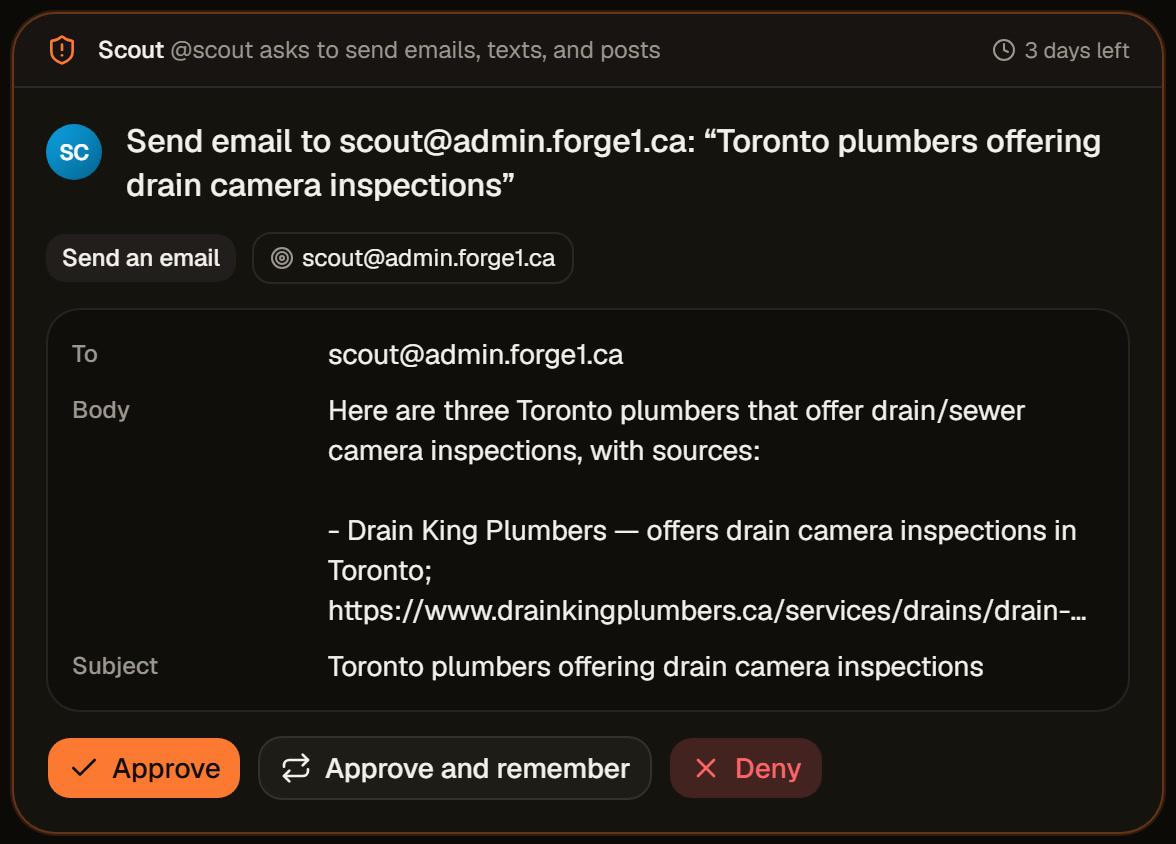
Approval cards show the exact action.
When a bot wants to send, post, change a record, delete, share, or spend, the run pauses and a card appears in the conversation, in the approvals inbox, and as a phone notification.
- The whole action, not a summary
- The card lists the tool, the target, and every field: the recipient, the subject, the full body.
- Bound to what you saw
- Approval covers that exact action once. If the bot changes a word or a recipient, it has to ask again.
- Edit, then approve
- Fix the wording yourself. Only your edited version goes out.
- Approve and remember
- Let the same kind of action through for a limited time, so routine work stops asking.
- Cards expire
- A request left alone expires instead of firing days later. The card shows the time left.
- Deny, and the bot adjusts
- The action does not run, and the bot tells you what it can do instead.
Set rules per bot.
Every kind of action has a setting: do it without asking, ask me first, or hand it to me. A bot can follow the workspace or have its own, except where a higher level has locked a rule.
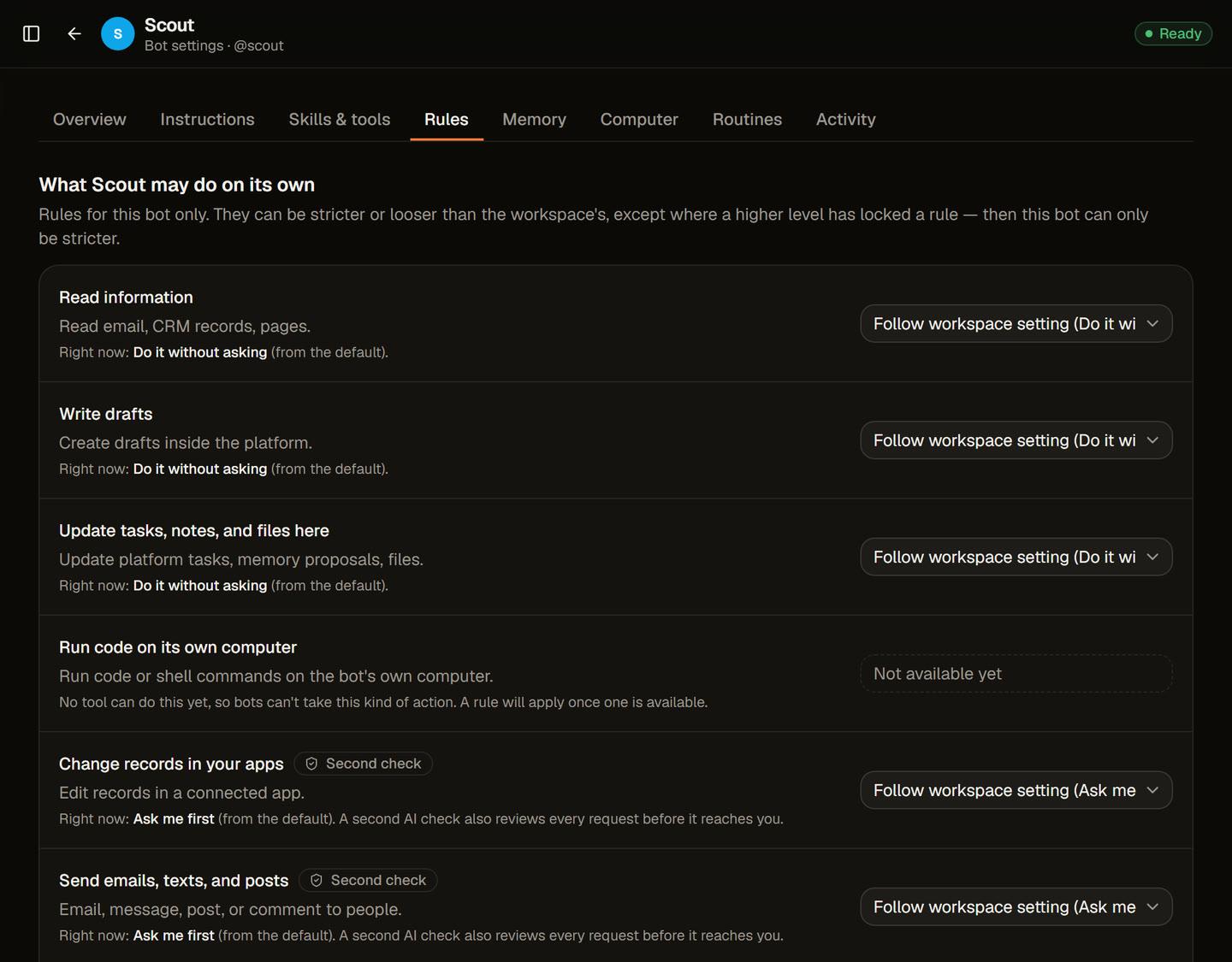
- A second check on risky actions
- Sends, record changes, and deletes are reviewed by a separate check before they reach you, and anything that looks off is flagged.
- Locked means locked
- Password and security changes are always handed to a person, whatever a bot's rules say.
Every run leaves a timeline.
Open any task to see each step the bot took, in order, with the time it took, what it read, and whether it went through a connected app or its browser.
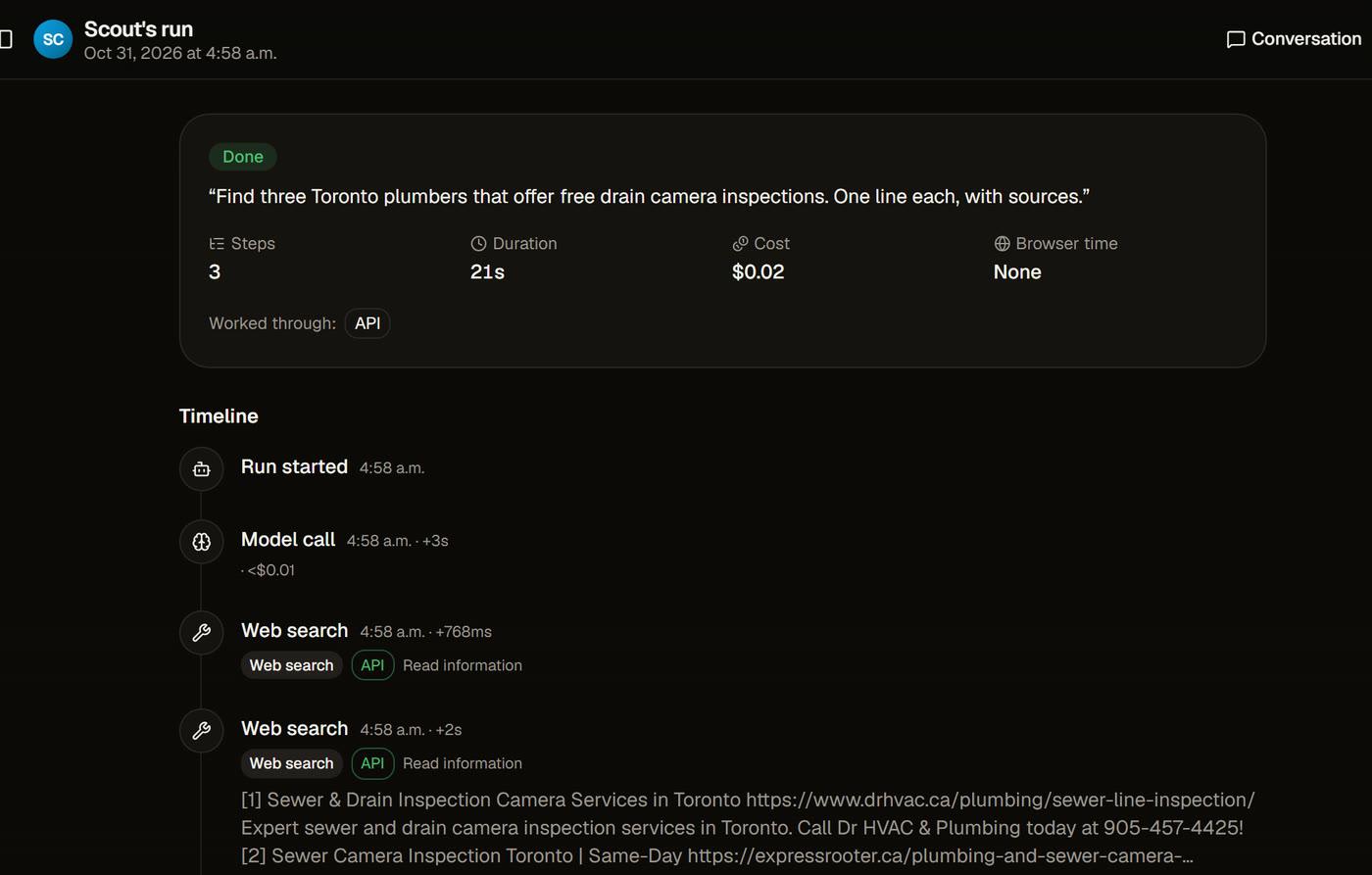
- Cost and time on every run
- Each run shows its duration, model cost, and browser minutes, so you can see what a job really costs.
- Proof of what happened
- Searches, pages read, and tool results stay on the run, linked from the conversation.
A memory you can read and edit.
Bots keep what they learn as plain statements: facts, preferences, decisions, and corrections. Each one shows where it came from and who it applies to.
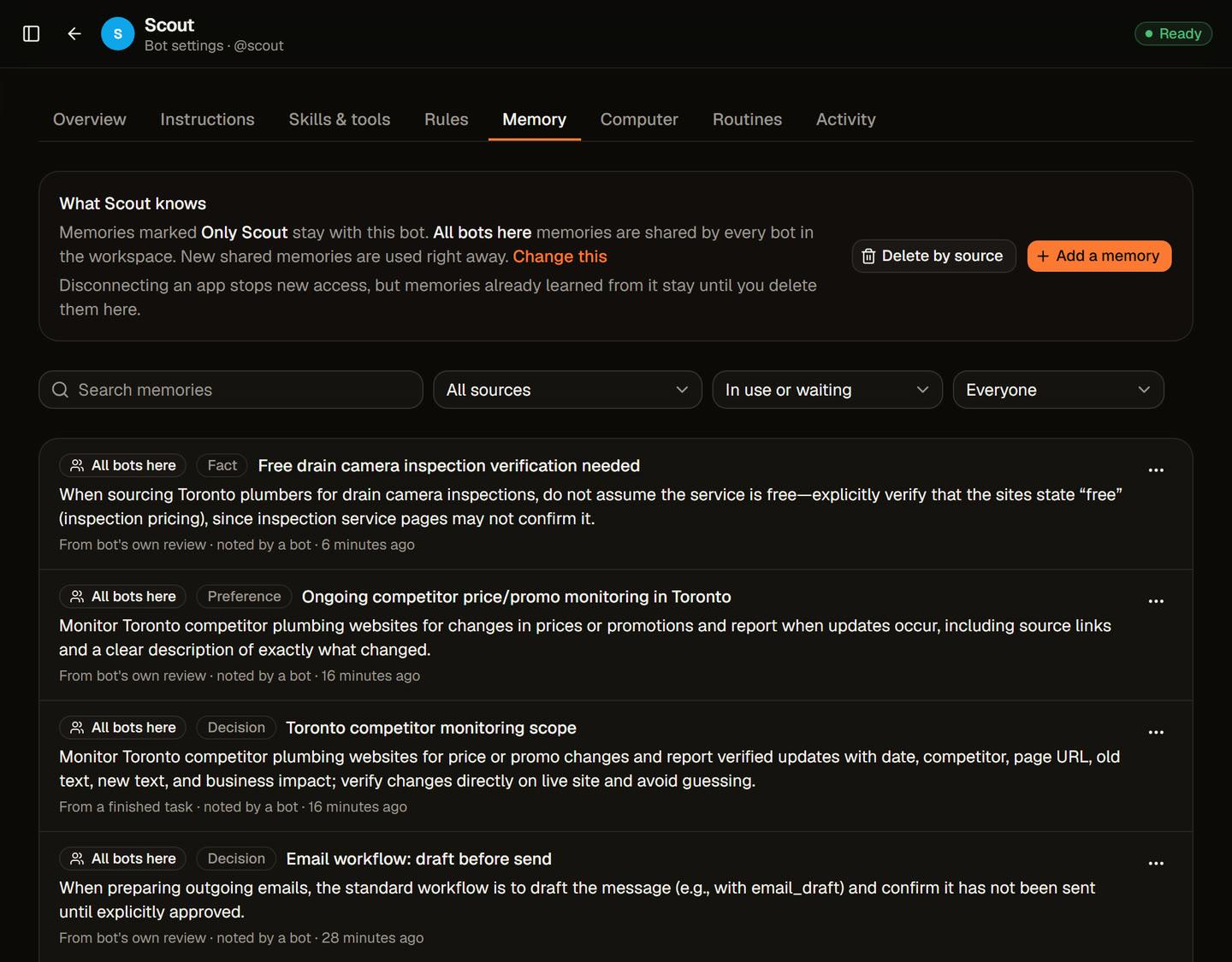
- Corrections stick
- Correct a bot in a conversation and it saves the correction for every run after.
- Only this bot, or all bots here
- Keep a note to one bot, or share it with every bot in the workspace.
- Delete by source
- Disconnecting an app stops new access. Remove everything learned from it in one step.
- Your documents too
- Add documents to the workspace knowledge library and bots can draw on them in their work.
Its own browser. You can take over.
Bots work in a real browser in the cloud, so they can use sites that have no API: supplier portals, booking pages, back offices. You can watch any of it live.
- Sign-ins without sharing passwords
- Save a sign-in to the workspace vault. The bot's browser is filled in for it, and the model never sees the password.
- Take control, then hand back
- When a site asks for a code or a verification step, the bot hands it to you. While you have control, the bot doesn't type or click.
- A fresh look after handback
- When you hand back, the bot looks at the page again and tells you what changed before it continues.
- Runs on our servers
- Close your laptop and the job keeps going until it needs you.
Write to it like you would to staff.
Plain language from the web, the installable phone app, or the desktop app. A conversation picks up where you left it on any of them.
- One conversation per bot
- The history and context stay with the work.
- Group conversations
- Put several bots and people in one conversation. Mention a bot to bring it in.
- Notifications that matter
- You hear about approvals, questions, completed jobs, and anything that failed.
- Desktop and phone
- Get the apps from the download page, or install from your browser.
17 skills, on request or on a routine.
Skills are repeatable jobs a bot knows how to do. Routines start them for you.
Everyday work
Daily briefing, Inbox triage, Research brief, Document summary, Weekly report, Data transfer
Sales
Lead capture, Lead follow-up
Marketing
Review responder, Social post drafts
Support
Support reply drafts
Bookkeeping
Invoice from job, Receivables follow-up, Bill intake
Front office
Appointment booking, Appointment reminders
Calls
RealVoice call follow-up
On a schedule
Every weekday at 8 am, or the first Monday of the month.
When something happens
A new email, a form submission, or a call that just ended.
From a webhook
Another system calls the routine's private URL.
Teams of bots with a coordinator.
Give a group of bots a shared conversation. The coordinator breaks the job into tasks and assigns them, specialists report back, and every task has exactly one owner.
- Ready-made teams
- Install Front Office (coordinator, receptionist, inbox assistant) or Marketing Team (coordinator, research, writing, reporting).
- Out in the open
- Bots message each other inside the conversation, so you can read every handoff.
- A shared task list
- See who owns what, what is blocked, and what is done.
- Your copy to change
- A template installs as your own copy. Change any bot, skill, or rule afterwards.
Pick the model for each workspace.
Choose the model provider that suits the work and the budget, workspace by workspace.
OpenAI
Connect OpenAI models for chat, drafting, and reasoning.
OpenRouter
Reach a wide range of models through one OpenRouter connection.
DeepSeek
Use DeepSeek models where they fit the work and the budget.
Workspaces keep everything apart.
A workspace holds its own bots, memory, files, browsers, sign-ins, connections, rules, and spending limits. Agencies on the Operator plan run one workspace per client.
Read how isolation, approvals, and the vault work on the security page, or see which plan fits on pricing.
Put your first bot to work today.
Pick a plan, name your first bot, and hand it a job. Prices are in Canadian dollars, billed monthly.
Read the Terms of Service and Privacy Policy.